
Bocada Cloud collects backup job data and displays the status and details of those jobs in reports and Dashboards from all backup connectors. However, Bocada Cloud also collects and displays warnings (e.g. "disk almost full") from a few backup applications, including:
- Veeam Backup & Replication
- Acronis Cyber Protect Cloud
- Arcserve UDP
- Axcient x360 Recover
- Azure
- Barracuda Cloud-to-Cloud Backup
- Cove
Note: Warnings are collected and viewable in Bocada Cloud for customers who subscribe to the Pro or Ultimate plans.
Warnings issued by a backup application can be seen in two ways in the Bocada Cloud UI.
1. Dedicated Warnings report & Dashboard alert
Bocada Cloud customers who are in a 30-day free trial, or have subscribed to the Pro or Ultimate plans, will have access to a standard, pre-configured report called Warnings if they add a connection to Veeam B&R, Acronis Cyber Protect Cloud or Arcserve UDP.
This standard Bocada report is available in the Report Library or Reports in the left navigation menu in the Backup Activity reports category.
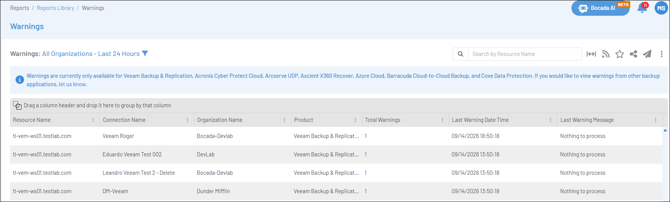
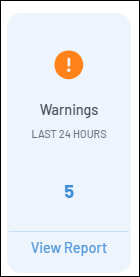
Additionally, a "Warnings" tile in the Alerts widget on the Dashboard will display the number of warnings in the past 24 hours and link to the report. The Warnings report is configurable like any other standard report, and can be shared, exported and automatically distributed.
2. Warnings in the Job Activity report
The Job Activity report details all backup job activity for all connections. To view the warnings, you will need to follow these steps:
- Navigate to the Job Activity report under Standard reports > Backup Activity on the left navigation menu or in the Report Library. The default report displays a variety of data columns, however there are hidden ones you can enable to view. Warnings is one of these hidden columns.
- To enable additional data columns, click the three dots on any data column header and select “Columns”
- Scroll down and check the box next to “Warnings” and “Last Warning Message” > then click “Apply”
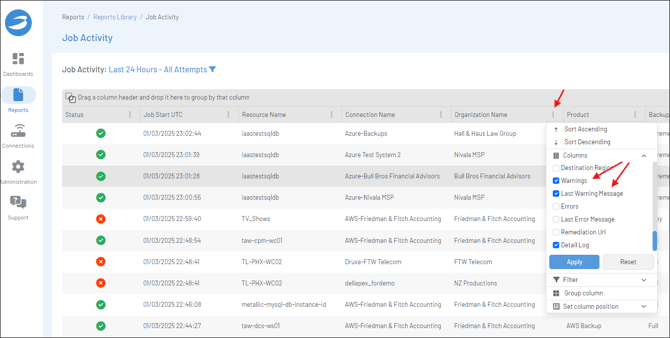
- The new data columns will appear in your report grid. You can drag and drop them to put them in the place that you want, or group by them, sort, filter, etc.
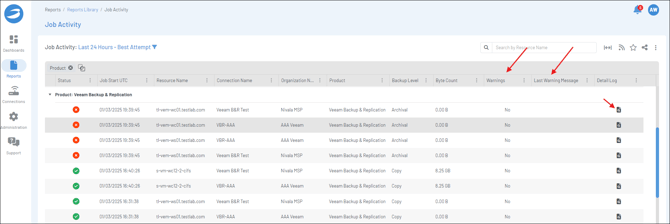
- If there is a warning on a backup job, there will be a “Yes” in the Warnings column, and the last warning message will display in the “Last Warning Message” column.
- To see all warning messages, click the “Detail Log” icon for that particular job which will pop-up a screen with the detailed backup data info, errors and warnings.
Create a custom Warnings report
- Using the steps above, enable the "Warnings" and "Last Warning Message" columns to display and move them to whatever position you want in the report.
- Optionally, hide any data columns you don't need to see.
- You can also group, sort or filter the "Warnings" column by "Yes" to see those jobs with a warning more easily.
- Click the three dots at the top right of the report grid to Save as a New Report. Give this new custom report a title, such as "Veeam Warnings Report" and save it so it appears in your Report Library in the Created By You section.
Can I be Alerted if there is Warning?
If you are subscribed to the Pro or Ultimate plans, you can set up an email notification or generate a ticket in your ticketing system if one of your connected backup applications issues a warning.
- Learn how to set up an automated email notification alert
- Learn how to set up an automated ticketing alert
Note: the process to set up an alert for warnings is the same as setting up an alert for backup job failures or data collection failures. Backup warnings is one of the alert types.
Can I Make a Backup Job with a Warning Display as a Backup Job Failure in Bocada Cloud?
Yes, users with a Super Administrator role can configure a setting so that any backup job that includes a warning from the backup application will display in the UI and reports as a backup job failure, even if the backup job succeeded. This was put in place for those who want to be alerted when a warning is issued for any/all backup jobs, regardless of the status (successful or not). In this way, you can use the custom email notification or ticketing trigger for backup failures to alert you when a backup job has a warning OR a failure so you can look into it and take appropriate action.
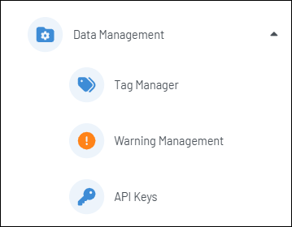
In the Administration > Data Management menu, select Warning Management.
If you toggle this option to "on," then backup jobs that include a warning from the backup application will be displayed in the UI and reports as a failure, even if the job was successful. It will also qualify as a failure to generate a custom email notification or ticket trigger that set up to alert on backup failures.
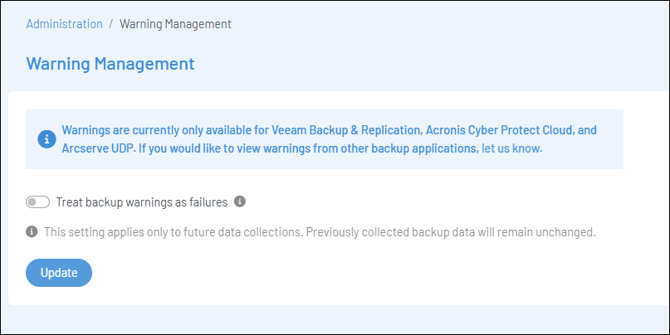
Note: once toggled to "on," this change will only apply to future data collections. Backup data previously collected will not be changed.
If you have issues with Warnings after trying these steps, or would like Bocada Cloud to collect warnings from additional backup application, create a Support Ticket in Bocada Cloud, or contact us.