
Bocada Cloud can automatically open a ticket in your ticketing system to alert about various issue, such as when a backup job or data collection fails. For API-based ticketing integrations, it can also update and auto-close tickets. This is designed to integrate into your existing operational workflow and reduce ticketing "noise."
Bocada Cloud supports API integrations with leading ticketing systems (e.g. Service Now, Jira, HaloPSA, Autotask and ConnectWise). You can also set up a SMTP configuration using an email notification alert to create a ticket in any ticketing system by sending it to an email address associated with your ticketing platform or support inbox.
Note: API-based ticketing integrations are available for Pro & Ultimate plan subscribers only.
Updating & Auto-Closing Tickets
If you are using one of the API-based integrations, opened tickets will be automatically updated if additional failures occur for the same resource (instead of creating new tickets for each failure).
If your organization is subscribed to the Ultimate plan, you can optionally choose to have Bocada Cloud automatically close a ticket it has opened if a backup or data collection succeeds on a later attempt after previously failing. This is configurable when creating a new, or editing an existing, ticketing integration.
Instructions to set up a Ticket Trigger
1 - Log into Bocada Cloud and go to the Administration section on the left navigation menu, and select Alerting > +Add Alert.
2 - Click the Ticket tile.
a. If you have already integrated your ticketing system with Bocada Cloud, select it from the "Ticket Integration" drop-down menu and click the Next button.
b. If you have not yet integrated your ticketing system, select "Create a new ticket integration" and follow the steps to configure it in Bocada Cloud.
Ticket Trigger Types
Depending on your subscription plan, you will see a variety of trigger type options. However, all subscription plans have the ability to configure an alert if a backup job or data collection fails.
3 - Select either the Data Collection Failures or Backup Job Failures tile.
4 - Trigger Settings: this gives you the ability to choose when you want the ticket to be created. Selecting 1 will generate a ticket the first time the data collection or backup job fails. However, often a data collection or backup job resolves itself on a subsequent attempt, so many customers choose 3 attempts. That way, a ticket is only created if the failure occurs three times in a row.
Scope
Next, you will be asked to configure the scope of the ticket trigger.
5 - Organizations: If you have set up more than one Organization in Bocada Cloud, you can choose whether the trigger applies to all Organizations (default), or to specific ones in case you want to set up a different ticket trigger with different settings for each Organization.
6 - Connections: If you want the trigger to apply to all of your connections to backup applications, then keep the default “All connections” selected. Or, if you want, you can have a ticket created for each individual connection if the trigger and parameters are going to be different.
7 - Tags: if you have assigned tags to resources in your account, you can configure the ticket trigger to include or exclude specific tagged resources.
Grouping
Ticket Trigger Grouping gives you greater control and flexibility in terms of how you would like the tickets to be generated to match your operational workflow. Select the one that makes the most sense for you, either choose to receive one ticket per Resource, one per Connection, one per Organization, or one across all Organizations.
Ticket Details
8 - Trigger Name: You can create multiple ticket triggers for a single ticketing integration; therefore, Bocada Cloud requires you to give each trigger its own name.
9 - Static Fields Assignments: click the + icon on the far right to view a list of ticket data fields from the ticketing platform that you can auto-populate with a specific value when the ticket is created.
10 - Ticket Creation Failure Notification: you can decide if you want to receive an email if the ticket creation process fails so you are aware and can take steps to remediate it.
11 - Create Test Ticket: to check the ticket configuration, you can click the Create Test Ticket button and look in your ticketing system to verify it came through as expected.
12 - Summary: in the right panel, you'll see a summary of your notification settings to review what you have configured in case you'd like to go back to make any changes.
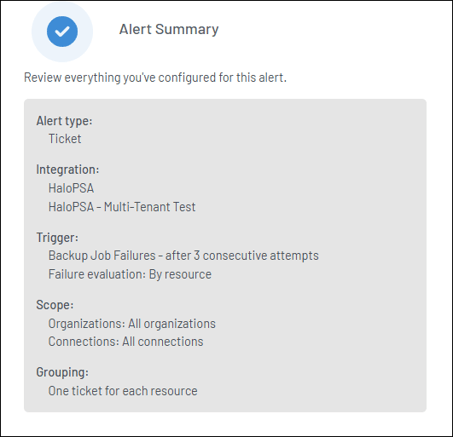
11 - Save: Lastly, click the “Save” button to enable the ticket trigger to your Alerts list.
View Your Ticket Triggers
12 - Go to the Administration section on the left navigation menu, and select Alerting > List Alerts.
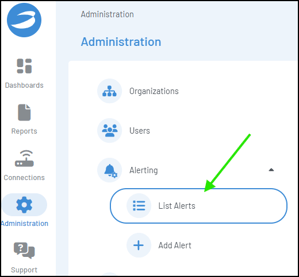
13 - Your new ticket trigger will be listed, and on the far right you'll see four icons:

- || = This is the "pause" icon to pause ticket generation. This is useful during maintenance windows when you do not want to receive tickets about failures when the machine is offline. You can "unpause" later when the machine is back up and running.
- Eye = this is the "view" icon to view a summary of the ticket trigger settings so you quickly review them.
- Pencil = this is the "edit" icon to edit the ticket trigger settings.
- Trashcan = this is the "delete" icon to delete the ticket trigger.
Additional Alert Types
Depending on your subscription plan, you may have access to other alert types to automatically generate tickets in your ticketing system for:
- Connector Credentials Expiration: Triggers an email before a connection's credentials (key, secret, or password) expire.
- Backup Application Warning: Triggers an email when the backup application itself reports a warning on a job.
- Missed Backup / No Activity: Triggers an email when a resource has gone without any backup activity for longer than expected.
- In-Progress Jobs: triggers an email if an in-progress backup job is running longer than X hours / X days.
- Veeam Backup Job Disabled: if you are using Veeam Backup & Replication, you can also generate an email notification if Bocada Cloud detects that a Veeam backup job has been disabled.
If you have issues or questions related to setting up a ticket trigger or integrating with your ticketing system, create a Support Ticket in Bocada Cloud, or contact us.