
After you have set up an integration between Bocada Cloud and your ticketing system and configured ticket triggers (instructions to do that here), you'll be able to view the tickets that were created (for example, when a backup job or data collection fails).
View Tickets
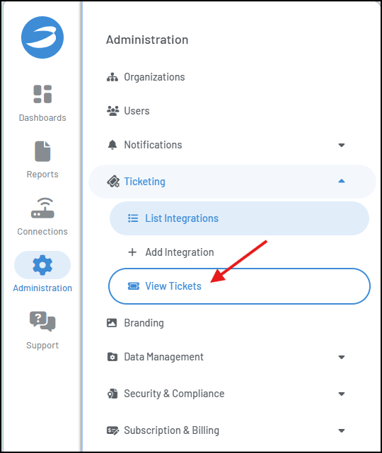
On the Administration menu, under the Ticketing category, click View Tickets.
You will see a grid-based report with a variety of data columns that can be moved into different positions, hidden/shown, sorted, filtered and searched.
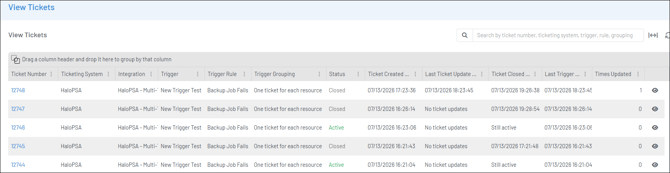
Default Data Columns in the report include:
- Ticket number - this is the number assigned to the ticket inside the ticketing system. It is hyperlinked so you can click it and be taken to your ticketing system's login page to login and view the ticket itself.
- Ticketing System - the name of the ticketing application used for the integration.
- Integration - the name given to the ticketing integration configured in Bocada Cloud.
- Trigger - the name of the trigger associated with that ticket.
- Trigger Rule - the name of the trigger type/rule associated with that ticket.
- Trigger Grouping - the selected ticket grouping configured for that ticket.
- Status - identifies if the ticket is still active or has been closed.
- Note: the ticket will only display a status of "Closed" if you are an Ultimate plan subscriber and have enabled "Auto-Close" on the ticketing integration configuration page. Otherwise, it will continue to say "Active" even if you have manually closed the ticket in your ticketing system.
- Ticket Created, Last Updated and Closed - date/time of those actions in UTC
- Last Trigger - the last date/time the ticket trigger criteria was met for that ticket
- Times Triggered - how many times the ticket trigger criteria has been met for that ticket
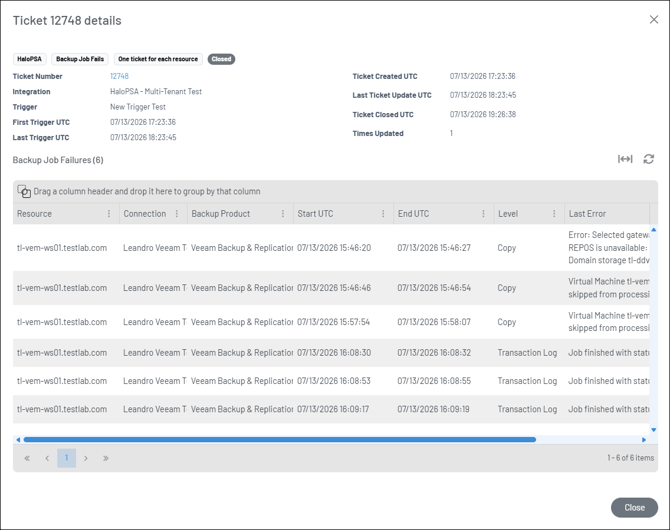
- View Details (eye icon) - click to view details of the ticket itself
View Ticket Details
Click the eye icon on the
Search for a Ticket
At the top right of the report grid, you'll find a search box that enables you to search the entire report by ticket number or other data element

If you have issues or questions related to viewing tickets created by Bocada Cloud, create a Support Ticket, or contact us.