
Bocada Cloud has a variety of alerts you can configure to ensure you're aware of key information you want to know, as soon as it happens.
Alert Types
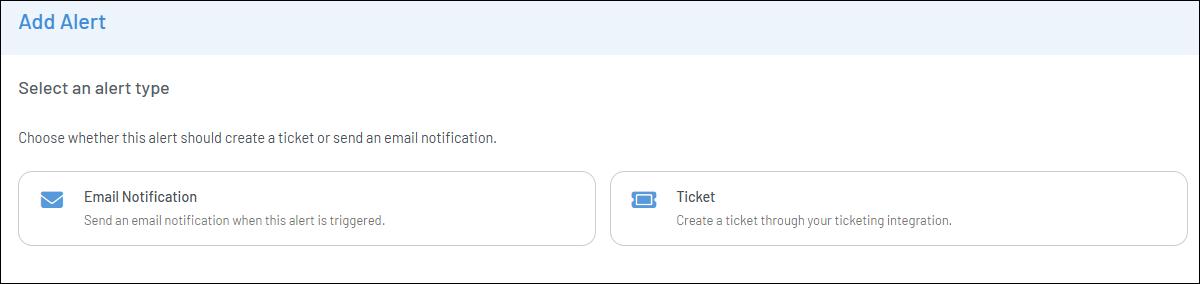
There are two ways to receive alerts:
Email Notification
An alert can be sent automatically by email to one or more user email addresses, or to an email address associated with an internal system (SMTP push / "email to ticket").
Ticket
You can integrate your ticketing system with Bocada Cloud to automatically generate a ticket when alert criteria are met.
Alert Options
Available to customers on all subscription plans:
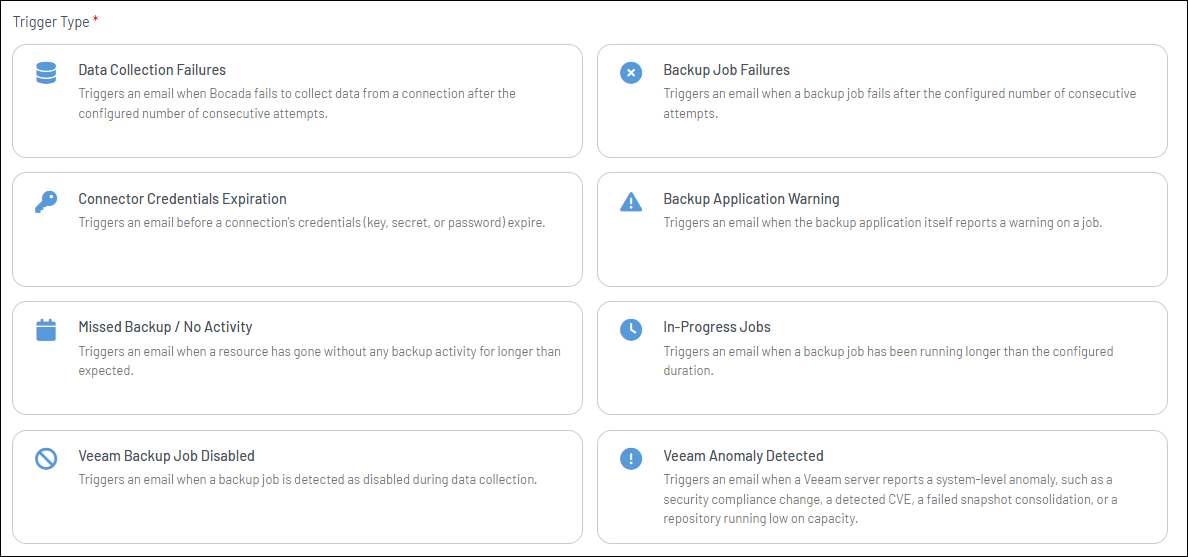
- Backup Failures: Triggers an alert when a backup job fails after X consecutive attempts.
- See detailed instructions to set up a backup failure email notification or open a ticket in your ticketing system when a backup fails
- Data Collection Failures: Triggers an alert when Bocada Cloud data collection for one or more connected backup applications fails after X consecutive attempts.
- Connector Credentials Expiration: Triggers an alert before a connection's credentials (key, secret, or password) expire. Note: this requires that a credentials expiration date has been entered for one or more connectors when configuring the connection details.
Available to customers on the Pro and Ultimate subscription plans:
- Backup Application Warning: Triggers an alert when the backup application reports a warning on a backup job.
- Missed Backup / No Activity: Triggers an alert when a resource does not have backup activity for a specified period of time (X hours or days), or there was no backup activity on specific days of the week.
Available to customers on the Ultimate subscription plan:
- Backup Failure - error code or error message filtering: users can use advanced filters on the Backup Failure alert type to alert on failures that include or exclude specific error codes or error message content.
-
In-Progress Jobs: Triggers an alert if an in-progress backup job is running longer than X hours / X days.
- Veeam Backup Job Disabled: if you have connected to Veeam Backup & Replication, you can generate an alert if Bocada Cloud detects that a Veeam backup job has been disabled.
- Veeam Anomalies: if you have connected to Veeam Backup & Replication, you can generate an alert if Veeam reports one or more of the following anomalies, including:
- All stuck VM snapshot consolidation attempts have failed
- Background checkpoint removal. Backup server: <XYZ>
- Backup repository free space
- Scale-out Backup Repository (indication of an “Offload Failed”)
- Failed to update license key
- Backup proxy connection failure
- Alarm - Backup server security & compliance state has changed
- Alarm - Security vulnerability CVE-XXXX-XXXX in Veeam Backup & Replication for <XYZ>
Setting up an Alert
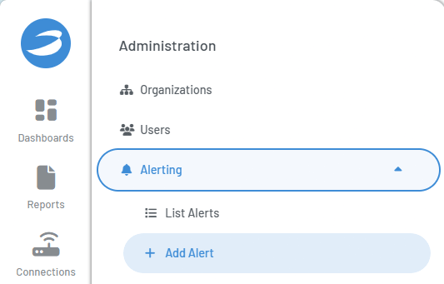
Alerts are found on the Administration menu > Alerting > Add Alert.
Select the Alert Type:
Select the Alert you want to set up:
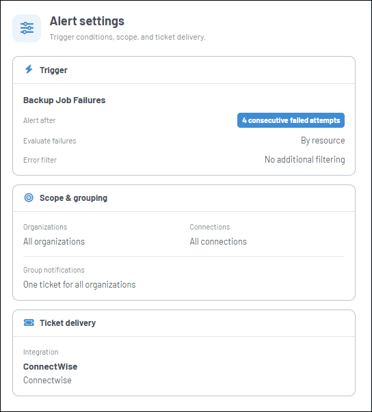
Follow the steps to configure the alert scope, grouping, and other details. You will be able to see a preview of the alert and send a test email notification or test ticket to see what it will look like in advance.
It will also show you a summary of all of the alert settings to confirm it's set up exactly as you want.
Once your alert has been saved, it will appear on the Alerts list page which can be found on the Administration > Alerting > List Alerts.

On the Alerts List page you will be able to:
- Pause an Alert / Un-pause an Alert (II or > icon) - you can pause an alert from being sent during server downtime or maintenance windows to avoid unnecessary alert noise. When things are back up and running, you can "un-pause" the alert.
- View Alert Settings (bullet list icon) - see a summary of the alert configuration details.
- Edit Alert (pencil icon) - edit the alert settings.
- Delete Alert (trashcan icon) - delete the alert to remove it from the list.
If you have any issues or questions about configuring alerts, create a Support Ticket in Bocada Cloud, or contact us.