
Bocada Cloud's direct database connector to Veeam Backup & Replication systems provides an additional opportunity to collect detailed information about failed backup jobs, helping users better understand why the job failed and benefit from AI analysis to get recommendations to fix the issue.
Configure the Veeam Backup & Replication connection
Pre-requisites
-
The Bocada Data Collection agent must be installed on the Veeam server itself (the same machine where the Veeam Backup & Replication application is installed) for the detailed error logs with stacktraces to be collected and displayed in Bocada Cloud.
- You need to know the exact location (path) where Veeam Backup & Replication is installed on the server/machine.
Add or Edit the Veeam Connection
1 - Add New Connection: If you have not added a connection to Veeam Backup & Replication yet, follow these instructions to learn how to install the Bocada Data Collection agent on the Veeam server and configure the connection until to reach the final configuration page (screen shot below). Once at that page, follow steps 3 & 4 below.
2 - Edit Existing Connection: If you already have a Veeam Backup & Replication connection configured and running, you can edit the connection to enable the collection of detailed error logs with stacktrace information. Go to Administration > Connections > List, and edit the Veeam connection by clicking the pencil icon.
3. Advanced Properties: Expand the Advanced Properties section and check the "Enable detailed error log capture for failed backup jobs" checkbox.
4. Confirm Veeam installation path: Verify that the path to the location where Veeam Backup & Replication is installed on the server/machine is correct. Bocada Cloud will auto-populate the default path. However, if your organization has installed Veeam in a different location, update this field with the correct path.
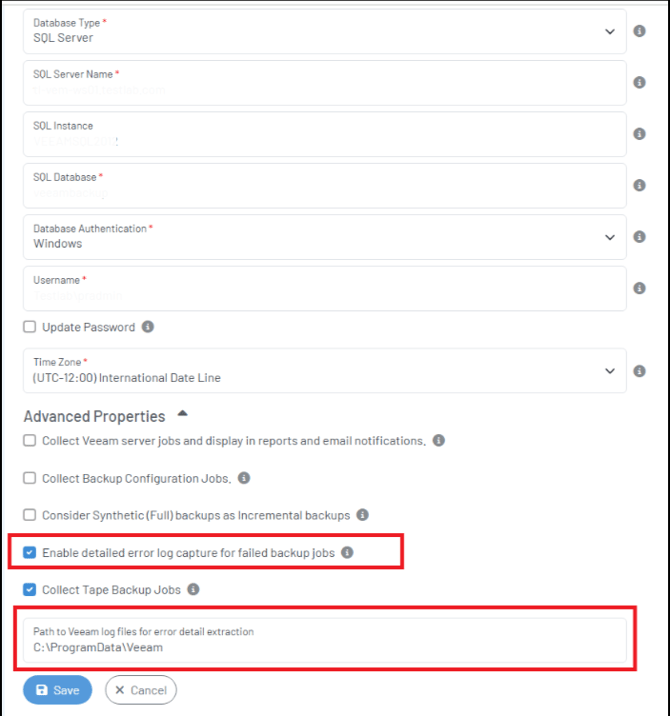
Note: Once enabled, the Bocada Cloud Data Collection Agent will capture detailed error logs for failed backup jobs to provide additional diagnostic information to help troubleshoot why backup jobs failed, including specific error messages and stack traces from the Veeam logs. Enabling this option may increase collection time and log size.
View Detailed Error Logs with Stacktraces
Once Veeam Backup & Replication has completed backup data collection(s) and a Veeam backup job has failed, you can view more detailed information by clicking the Detail Log icon in backup activity reports as in the Backup Failures report below:
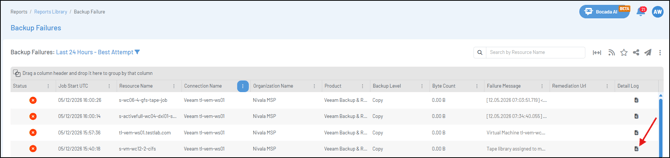
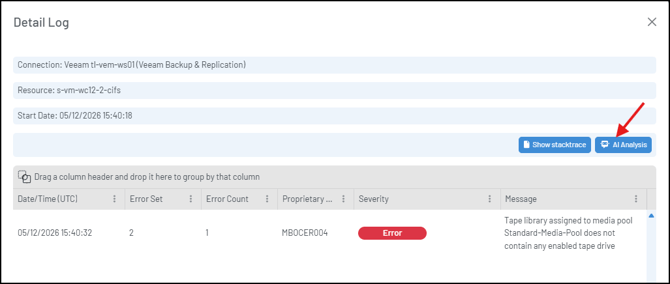
That will display the Detail Log screen with the failure message from the Veeam Backup & Replication application. Click the Show Stacktrace button as in the screen shot below:
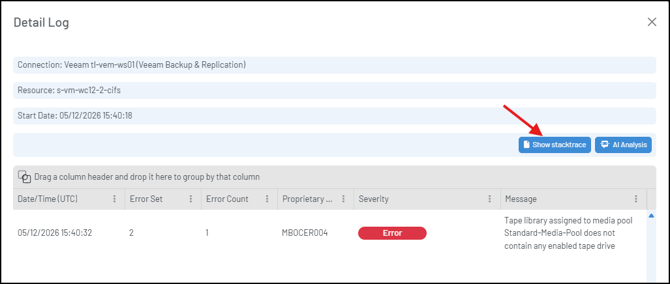
The stacktrace information will display:
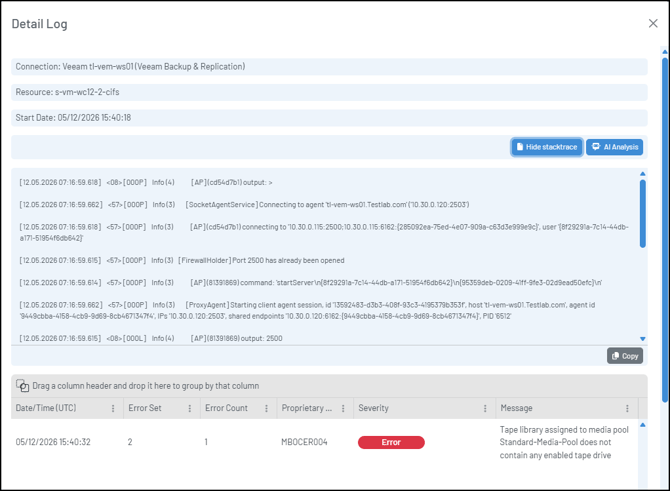
Then, if you would like to analyze the failure and get remediation recommendations, click the AI Analysis button as in the screen shot below:
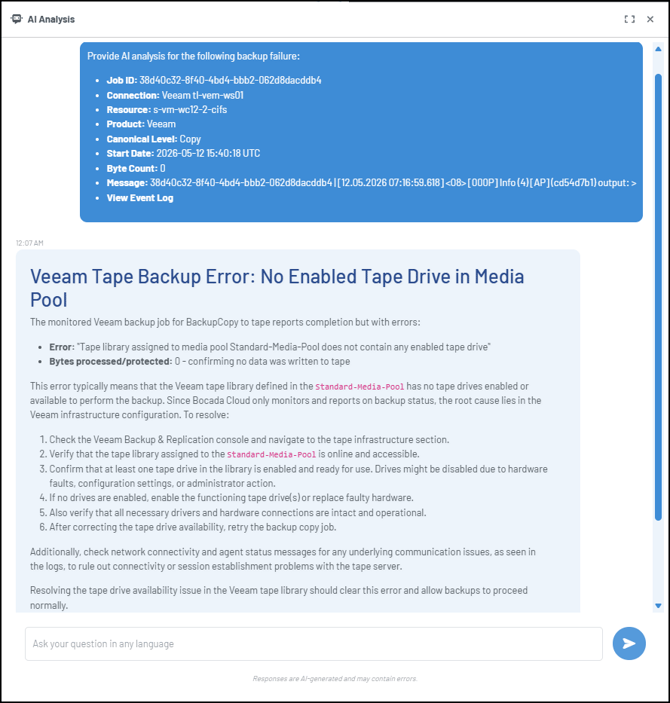
The Bocada AI agent panel will open and automatically perform a backup failure analysis, as well as provide recommendations for how to fix the issue.
If you have any issues or questions about backup job failure analysis, create a Support Ticket in Bocada Cloud, or contact us.