
Bocada Cloud's Tags feature enables the creation and assignment of custom tags to backup resources and endpoints, as well as storage devices and units. These tags can then be used when configuring reports, dashboard widgets, custom email notifications and ticket triggers.
Tag Use Examples
Decommissioning: if you have decommissioned a machine that was previously in your inventory as a backup resource or storage device but is no longer active, you may want to remove it from appearing in reports. You can tag it as "Decommissioned" and then exclude any resource with that tag from reports and Dashboards, including those that are automatically distributed.
Categorization: if you want to group backup resources or storage devices/units into specific categories outside of standard report groupings (such as by priority, sub-organization or geographic location), you can add one or more tags and then create custom reports by editing the report criteria to include and/or exclude specific tags.
Notifications / Tickets: you can tag one or more resources/endpoints and specifically include or exclude them from being considered when a custom email notification or ticket is generated.
Create a Tag
Users with a Super Administrator role can create, edit, hide/unhide, assign or unassign tags. Users with other roles can view visible tags and use tag filters in Reports, Dashboards, Email Notification and Ticketing triggers.
Use the Tag Manager
If you know what tags you want to create and make available to be used in configurations, start with the Tag Manager. Creating tags on this page gives you more flexibility to describe and assign a color to a tag, and is where you can manage tags created "on the fly" elsewhere in the UI.
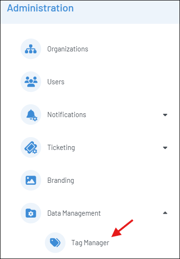
On the Administration menu, under Data Management, select Tag Manager
In the top right of the page, click the + icon to add a new tag

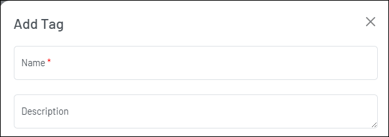
Enter the Tag name, and a description
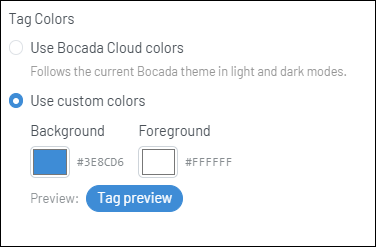
Select what color you would like to use for the tag - either the default Bocada Cloud colors used in light or dark mode, or a specific background and/or foreground color. You can also preview what the tag will look like before you save it.
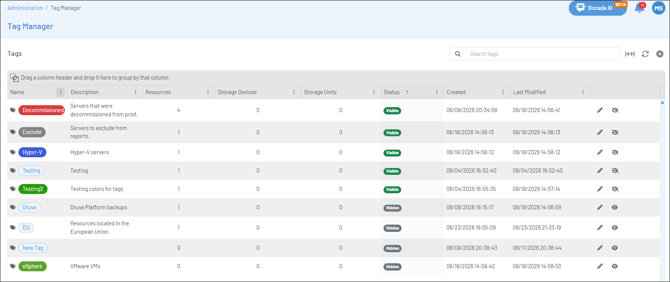
Once you have saved a Tag, you will see it on your Tags list along with the following attributes and actions:
- Number of resources/endpoints, storage devices and/or storage units with that tag
- Status of the tag - either visible or hidden (see "Hide/Unhide tag" below)
- Date/time the tag was created or modified
- Edit tag - edit the tag name, description or color
- Hide/Unhide tag - make the tag visible or hidden from being used in criteria:
- If a tag is hidden, it will no longer be used in the include/exclude criteria in reports, notifications and ticket triggers. For example, if a resource has been tagged and then excluded from a report, the resource will not appear. However, if that tag is later hidden, the resource (and any other resources with that tag) will no longer be excluded from the report and will appear.
-
- Additionally, hidden tags will not display as an option in the Tags drop-down menu when assigning tags to a resource or storage device/unit in a report, notification or ticket trigger. Only tags with a status of "visible" will display in the tags drop-down menu.
Assign a Tag
Super Administrators can assign/unassign a tag in any report that has the Tags column. This includes most backup job-related reports, as well as the Storage Utilization report.
To assign a tag, click the tag icon next to the resource, endpoint, storage device or storage unit in the report and the "Manage Tags" right-side panel will display for that item. Click the drop-down menu to see all visible tags that have already been created.
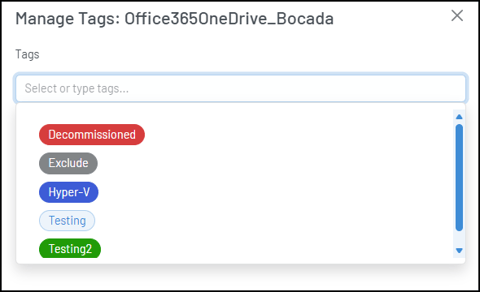
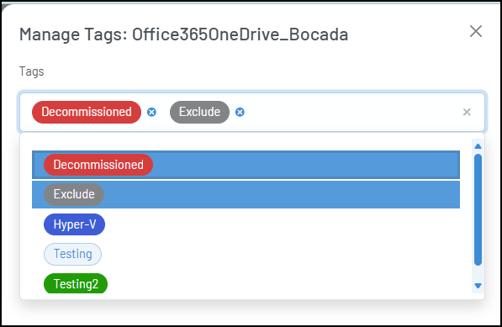
This is a multi-select field so you can assign more than one tag at a time. You can also click the blue x next to a tag to remove it.
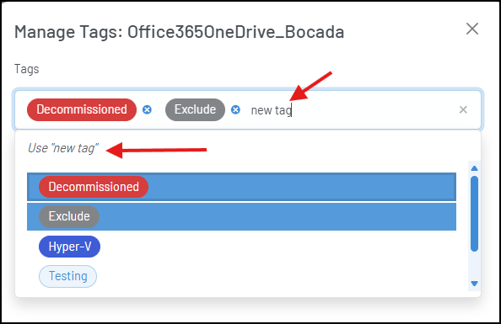
You can also type a brand-new tag into the field if you like. Once added, it will display on the Tag Manager page as well.
Resource Audit & Job Activity Reports: Bulk Assign / Remove Tags
We recommend using the Resource Audit report to tag multiple items in your inventory, or the Job Activity report that shows all of your backup jobs from all connections. You can bulk-assign tags, or bulk-remove tags at one time.
First, filter, group or otherwise narrow the list of items you want to use the tag bulk-assign or bulk-remove action. Then, to enable the bulk action, click the "Enable Row Selection" icon in the top right of the report (two check marks) and checkboxes will display next to each row.

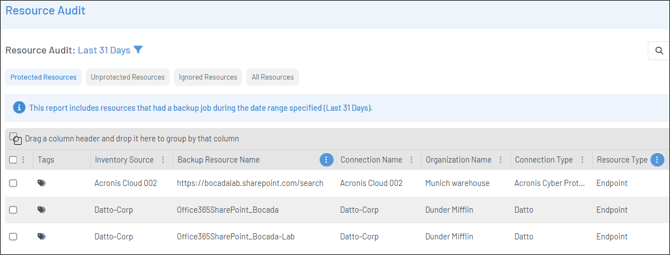
Then, you can click the top checkbox at the top of the grid to select all rows currently displayed on the page, or select individual items:
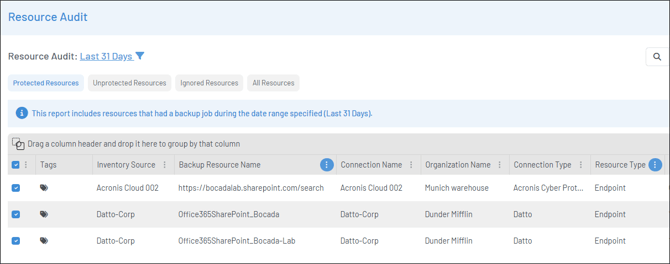
Next, in the top right of the report, you can see the number of items you have selected, and then use an action button to:
- Assign tags to selected resources (click tags icon)
- Unassign tags from selected resources (click the delete/trash can icon)
- Clear the selected items (click the eraser icon)

Note: If you create a tag with the exact same name as a currently visible tag, Bocada Cloud will not let you add it as a duplicate and the original tag will remain. However, if you create a tag with a name that exactly matches a hidden tag, you will be warned that saving the duplicate will unhide that tag, assign it to the current selection, and make it visible again on resources that already had that hidden tag assignment.
Use Tags to Configure a Report
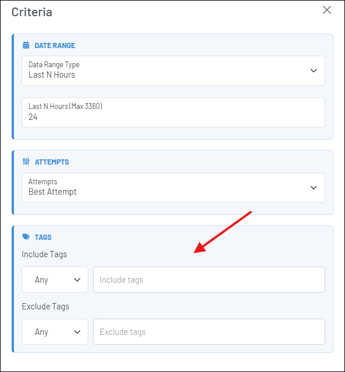
If you want to configure a report to include or exclude items with specific tags, click the three dots at the top right of the report to Edit Report Criteria. Reports that support Tag criteria display include/exclude Tags fields in the Report Criteria right-panel. If these fields are not displayed, Tag filtering is not supported for that report.
Tag filtering behavior: Any vs. All
When using tag criteria, select Any or All to control how Bocada Cloud matches selected tags.
For Include Tags:
- "Any" includes items that have at least one of the selected tags.
- "All" includes only items that have every selected tag.
For Exclude Tags:
- "Any" excludes items that have at least one of the selected tags.
- "All" excludes only items that have every selected tag.
If no tags are selected, the tag criteria is not applied.
Save as a Custom Report
Once your report is displaying the data you want to see based on using tags and editing the report criteria, save it as a custom saved report to your Report library (click the three dots at the top right of the screen and select "Save as a New Report"). That custom report will automatically update if you assign/unassign tags on resources or endpoints in the future.
Use Tags to Configure a Dashboard
Tags can also be used to filter most Dashboard widgets. When configuring a widget (click the gear icon on the top right of the Dashboard), use Tags to control which tagged resources are displayed in the widget results.
The Any and All options work the same way for dashboard widgets as they do for report criteria.
Use Tags in a Custom Email Notification or Ticket Trigger
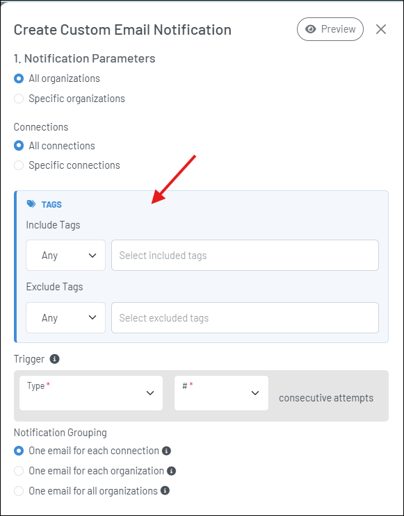
You can automatically include or exclude specific tagged resources/endpoints from being considered in the trigger criteria for a custom email notification or ticket to be generated. Create a new or edit an existing email notification or ticket trigger to use tags in the criteria.
FAQ
Q: Can I delete a tag?
A: No. Tags cannot be deleted because they may already be assigned to resources/storage devices and used in saved reports, criteria, notifications, or trigger filters. Removing them permanently could change or break those saved settings.
Instead, tags can be hidden. Hiding a tag removes it from normal tag lists, filters, and report displays, but keeps its existing assignments and saved references intact. If the tag is unhidden later, it becomes available again with its previous assignments preserved.
Q: Can I tag endpoints?
A: Yes. Endpoints can be tagged just like backup resources. On the Tag Manager page, endpoints are considered the same thing as Resources in terms of the number of times the tag has been used, when it was created and last modified.
Q: What is the difference between a Storage Device and a Storage Unit?
A: On the Tag Manager page, you'll see two separate columns for Storage Device and Storage Unit. For cloud-based S3 Storage, a Storage Device refers to the storage account and the Storage Unit refers to the storage bucket. For on-premise installed storage, Storage Device refers to the parent or top-level storage container, and the Storage Unit refers to the child container inside the device.
If you have issues with using Tags after trying these steps, create a Support Ticket in Bocada Cloud, or contact us.