
When your free trial of Bocada Cloud is over, you will be prompted to choose a subscription plan. There are three plans to choose from - Standard, Pro & Ultimate.
A user with a Billing Owner role can select one of the plans and enter payment information to subscribe.
How does the Subscription Plan work?
Bocada Cloud charges for the number of protected (backed up) resources and endpoints collected and monitored. If you have added a connector to a storage system, it will also charge for the amount of storage data (TB) monitored. Learn more about subscription-based pricing and costs in this FAQ
Payment Options
There are multiple options to pay for your Bocada Cloud monthly subscription:
- Credit Card / Debit Card - Bocada Cloud uses Stripe, a global payments platform, for automated monthly subscription plan billing using a credit or debit card. Each month user(s) with a Billing Owner role will be emailed a monthly payment confirmation and attached invoice. They will also be able to access all previous invoices and billing reports for each payment period inside Bocada Cloud from the Billing Report and Manage Your Subscription > Billing Dashboard and Invoices pages.
- Electronic bank transfer (ACH) - U.S.-based customers only - customers in the United States can choose to pay using electronic funds transfer from a bank account. This option is also processed through Stripe for secure payment transactions.
- Invoice Billing - customers who commit to an annual agreement have an option to pay to monitor up to a specified maximum number of resources, endpoints and/or amount of storage data through an invoice. Contact the Bocada Sales team at sales@bocada.com to learn more.
Step-by-Step Instructions to Subscribe and Pay for Bocada Cloud
Login
A user with a Billing Owner role starts by logging in to Bocada Cloud using their credentials. The user who initially created the Bocada Cloud account will have automatically been assigned the Super Administrator and Billing Owner roles. That user will be able to subscribe and enter payment information, or alternatively, they can add another user to the account with a Billing Owner role to handle subscription and payment tasks.
If your free trial period has ended
You will see a pop-up screen asking you to select a subscription plan in order to continue using the product. Select the plan you want to subscribe to and you will be taken to a page to select how you want to pay for your subscription.
Credit Card: If you select Credit Card, you will be asked to enter credit card details. This also applies to Debit cards. Once validated, the subscription will be active and monthly charges will begin.
- Monthly payments: The day you subscribe and enter a valid credit card will be your subscription start date, and one month later will be the first payment date which will become the recurring monthly payment date. For example, if you subscribe on January 15, the first payment will occur on February 14. That first monthly payment period will be January 15 - February 14, and the next payment period will start on February 15.
If your free trial period is still active
In the left navigation menu, go to Administration, and select Manage Your Subscription. Then, click the Subscribe to Plan button.
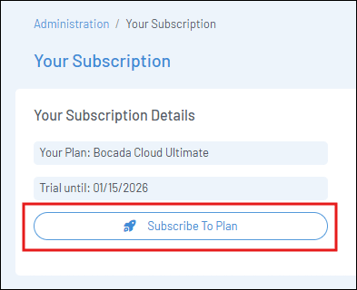
You’ll be taken to the subscription plan options page -- select the plan you want to subscribe to, and then select your preferred payment method. When your free trial concludes, monthly charges or the annual invoice period will begin.
If you have questions or issues with subscribing to Bocada Cloud after trying these steps, create a Support Ticket in Bocada Cloud, or contact us.