
Users with a Super Administrator role can configure a report to their specific requirements and save it as a custom report to their Report library. During that action to save the new report, they can choose to publish it as a Company-wide report.
Company-wide reports are available to every user in the Bocada Cloud account from a <Company name> Reports category. This saves the Super Administrator from having to share the report individually with each user, and provides users with a set of pre-configured reports that they can all use that meets a standard Company-specific format.
Note 1: The term "Company" refers to the parent organization who owns/operates the Bocada Cloud account and pays for the subscription. In the past this was referred to as the "Billing Entity."
Note 2: The first time a report is published as a Company-wide report, that category (using the Company name) will be automatically created in the Report Library.
Configure a Report and Save it as a New (Custom) Report
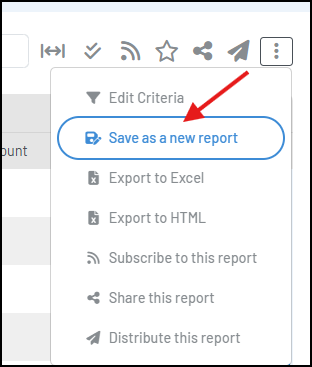
First configure a standard Bocada-created report, or any previously created custom saved report in their Report Library, by altering the report layout, criteria or data displayed and save it as a new report. To do that, click the three dots at the top right of the report and select "Save as a new report."
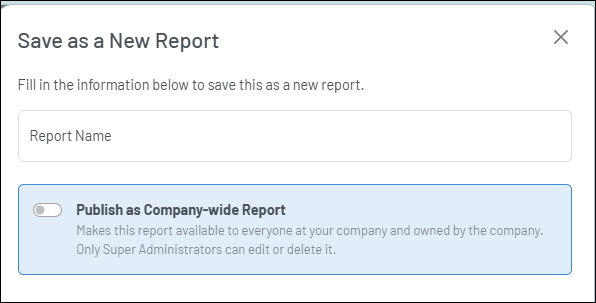
Users with a Super Administrator role will see an option to publish it as a Company-wide report that is only editable or can be deleted by a Super Admin.
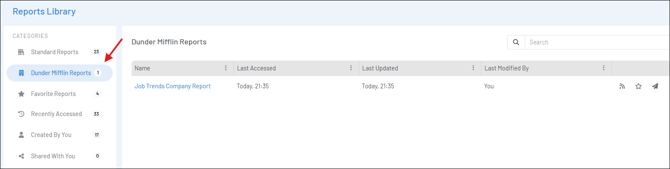
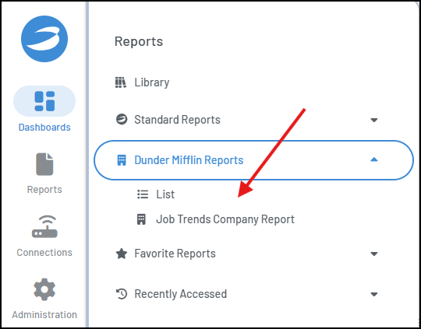
Once the report is published, it will appear in the <Company name> Reports category in the Report Library of every user.
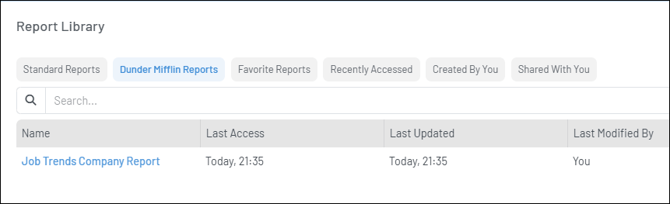
It will also appear in the Reports Library Dashboard widget.
And on the Reports left navigation menu.
Change a Published Report or Unpublish It
After a custom report has been published as a Company-wide report, any user with a Super Administrator role (not only the report creator) can edit the report criteria to:
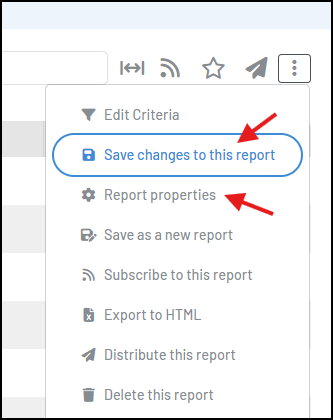
- Save changes to the existing report
- Save the changed version of the existing report as a new report and choose whether to publish it as another Company-wide report
- Change the name of the published report - click "Report Properties" and edit the Report name and then click the Save button.
- Unpublish the report - click "Report Properties" and then click the active "Publish" toggle to inactivate it and then click the Save button. This will remove the report from the <Company name> Reports category for all users, but it will remain in the report creator's personal "Created By You" category in their Report Library.
- Delete the report - there is also an option to delete the report which would remove it from the <Company name> Reports category for all users, as well as remove it from the report creator's personal Report Library.
If you have issues publishing a Company-wide report after trying these steps, create a Support Ticket in Bocada Cloud, or contact us.