
Bocada Cloud's connectors to backup applications use either an API or direct database connection approach to collect all available backup data. However, Cobian Reflector does not provide an API. So, Bocada Cloud collects backup data from it through email parsing of the emails sent by Cobian Reflector. To configure that option, follow the steps below.
Note: if you have Cobian Reflector installed on multiple machines, you will need to follow the steps below for each one.
Create the Cobian Reflector connection in Bocada Cloud
- Log into Bocada Cloud and from the left navigation menu, select Connections and +Add.
- Select Cobian Reflector from the list of applications.
- Create a name for the connection that will display in the Bocada Cloud UI.
- Select the appropriate time zone of the machine where Cobian Reflector is installed.
- Click the Next button.
- You will see a unique email address to use when configuring Cobian Reflector's email settings. COPY this email address. You will need to paste this into the Cobian Reflector application as explained below.
Configure Cobian Reflector email notifications
- Open the Cobian Reflector application.
- From the menu, select Tools > Options.
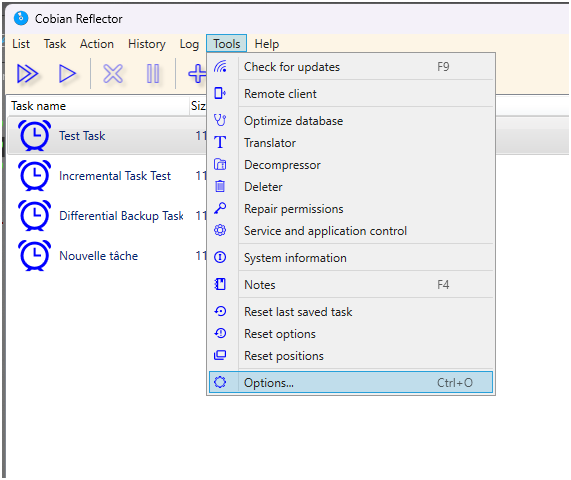
Configure Log Settings
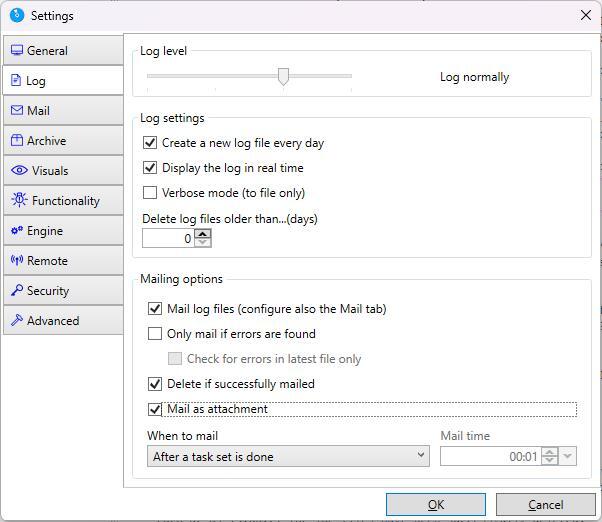
Navigate to the Log tab first to configure logging settings. The Log settings control what information Cobian Reflector collects and sends via email. These settings are critical for Bocada Cloud to properly parse your backup data.
Log Level
The Log Level must be set to at least "Log normally". Lower settings will not provide enough detail for parsing. Higher settings will not make a difference for Bocada Cloud's purposes.
Log Settings
The checkboxes in this section control how log files are created. While these don't directly affect email parsing, it's recommended to keep the defaults.
Mailing Options (CRITICAL)
Important: The following settings are REQUIRED for Bocada Cloud to receive and parse your backup data.
- Mail log files: THIS MUST BE CHECKED. If this is not enabled, Cobian Reflector will not send emails, and Bocada Cloud will have nothing to parse.
- Only mail if errors are found: THIS MUST BE DISABLED (unchecked). Bocada Cloud needs to track all backup activity, not just errors. Enabling this option will result in incomplete data collection.
- Check for errors in latest file only: This setting does not affect email parsing. Leave it as desired.
- Delete if successfully mailed: This setting does not affect email parsing. Leave it as desired.
- Mail as attachment: This can be checked or unchecked - the Bocada Cloud parser handles both scenarios. However, be careful if you choose to send logs in the email body AND you forward emails to the Bocada Cloud inbox. The parser will attempt to parse the full email body, including any forwarded email history that may contain Cobian log data, which could result in duplicate or incorrect data.
When to Mail
- When to mail: Set this according to your preference (after task completion, daily, or when a task is done). Keep in mind that it can take up to 1 hour for Bocada Cloud to process new emails and parse/collect the data after an email is sent.
- Mail time: If you selected "Mail daily" or "When a task is done", specify the time when the email should be sent.
After configuring the Log settings, click OK or navigate to the Mail tab to configure email server settings.
Configure Mail Server Settings
Now that logging and mailing options are configured, you need to tell Cobian Reflector how to send those emails.
- Click on the Mail tab (or the "Mail settings" sub-tab if visible).
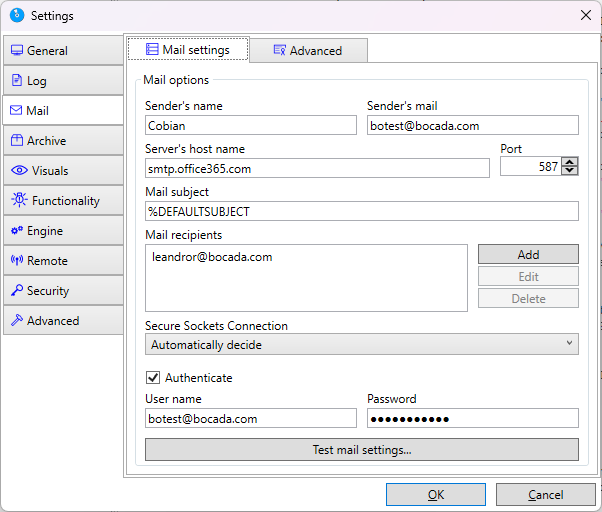
On this screen, you will see fields that specify how Cobian Reflector will connect to your email server and where the emails will be sent.
Mail Options
- Sender's name: This is the display name that will appear in outgoing emails (e.g., "Cobian Backup System").
- Sender's mail: This is the email address that will appear as the "sender" in outgoing emails. It should match the authenticated email account.
- Server's host name: This is the address of your SMTP email server. It often looks like
smtp.yourcompany.comorsmtp.office365.com. Contact your IT team to confirm the correct server address. - Port: This is the connection port used to access the email server. Commonly used ports are 587 (recommended) or 465. If unsure, check with your IT team, or start with 587, as it's the most widely used.
- Mail subject: You can customize this subject line. Cobian Reflector may have default placeholders that will be replaced with actual backup information.
- Mail recipients: This is where you will PASTE the Bocada Cloud email address you copied when setting up the connection. It follows the format:
backups+[connection_id]@bocada.com
For example:backups+01234-56ab-7cde-f89g-hij10klm@bocada.com- Click Add to add this email address to the recipients list.
Forgot the email address? You can find it in Bocada Cloud. From the left navigation menu, select Connections > List. Edit your Cobian Reflector connection (click the pencil icon) which will display the unique email address on the connection details page.
Secure Sockets Connection
- Secure Sockets Connection: Set this to "Automatically decide" or enable it manually if your mail server requires secure connections (most do). This ensures the email connection is encrypted and secure.
Authentication
- Authenticate: Check this box if your mail server requires authentication (most do).
- User name: This is the email address (or username) that will be used to log into the email server to send messages. It is typically the same as the "Sender's mail" address entered above.
- Password: This is the password used to log into the email account specified above.
Testing the Configuration
After completing all fields, use the Test mail settings button to verify the settings are configured correctly.
- A successful test indicates the SMTP connection is working and emails can be sent.
- If an error appears, double-check the entered information (especially the server address, port, username, and password) or consult your IT team for assistance.
Click OK to save all settings and close the Options dialog.
Verification
Once the configuration is complete, the Bocada Cloud email parsing service will start processing incoming emails from Cobian Reflector on scheduled intervals and display the data in your reports and dashboards.
Processing time: After Cobian Reflector sends an email, it can take up to 1 hour for Bocada Cloud to process and parse the backup data.
Troubleshooting
If you have issues with Cobian Reflector after trying these steps:
- Verify that "Mail log files" is checked in the Log tab
- Verify that "Only mail if errors are found" is UNchecked in the Log tab
- Confirm the Bocada Cloud email address is correctly entered in the Mail recipients list
- Test the mail settings using the Test mail settings button
- Check that your SMTP server settings (host, port, username, password) are correct
If problems persist, create a Support Ticket in Bocada Cloud, or contact us.