
You can monitor and report on Microsoft Azure Site Recovery (ASR) data by enabling ASR data collection when configuring the Azure Cloud connector in Bocada Cloud.
However, before Bocada Cloud can collect ASR data, you must enable diagnostic logging for each relevant Recovery Services vault to be sent to a Log Analytics workspace that the Bocada Cloud Azure connection can access.
1. Confirm the Azure Site Recovery prerequisites
Your Azure environment must meet the following requirements:
- At least one Recovery Services vault must be configured to protect workloads using Azure Site Recovery.
- Azure Site Recovery diagnostic logging must be enabled for each relevant Recovery Services vault.
- The diagnostic data from each vault must be sent to a Log Analytics workspace.
- The App Client used by your Bocada Cloud Azure connection must have permission to:
- Find and read the Log Analytics workspaces in the Azure subscription.
- Query the data in each Log Analytics workspace used for ASR reporting.
Log Analytics Reader or an equivalent role can be used to provide query access to a workspace.
Note: Permission to find or enumerate Log Analytics workspaces at the subscription level does not necessarily allow the App Client to query their data. Query access may need to be assigned separately to each relevant workspace.
If your Recovery Services vaults send diagnostic data to more than one Log Analytics workspace, confirm that the App Client has access to every workspace that contains ASR data.
2. Configure ASR diagnostic settings in Azure
Azure Site Recovery diagnostic data must be sent from each relevant Recovery Services vault to a Log Analytics workspace before Bocada Cloud can collect it.
Microsoft provides instructions for configuring Azure Site Recovery reporting and Recovery Services vault diagnostic settings in the following article: Configure Azure Site Recovery reports
For each Recovery Services vault containing workloads you want to report on:
- Configure the vault’s diagnostic settings.
- Enable the required Azure Site Recovery diagnostic data.
- Send the data to a Log Analytics workspace.
- Confirm that the identity that will be used by the Bocada Cloud connection can access and query that workspace.
Repeat the configuration for every Recovery Services vault containing ASR-protected workloads.
Note: Creating a diagnostic setting for one Recovery Services vault does not automatically configure the other vaults in the subscription.
3. Configure the Azure Connection in Bocada Cloud
- If you do not already have an Azure connection configured, select Connections > +Add from the left navigation menu and click the Microsoft Azure Cloud tile. Then, follow the instructions in this article: How do I connect to backup data in Azure?
- If you already have an Azure connection configured, then on the Connections page, click the pencil icon on the far right to edit the connection.
- Under "Advanced Properties," click the drop-down to expose additional fields.
- In the "Collect Azure Site Recovery Data" drop-down menu, select either:
- Yes = will collect Azure backup data in addition to Azure Site Recovery data
- ASR Only Mode = will collect Azure Site Recovery data only
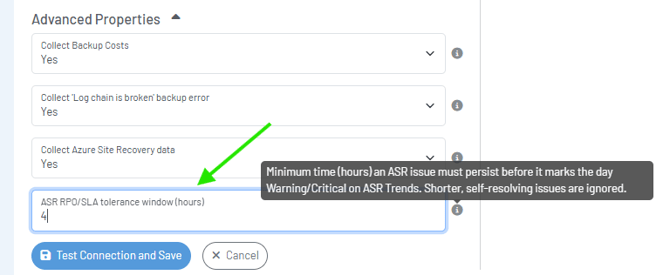
- Then, you will see the ASR RPO/SLA Tolerance Window field displayed. Enter the required number of hours (see more information below in step 4).
- Save the connection.
4. Configure the ASR RPO/SLA Tolerance Window
The ASR RPO/SLA Tolerance Window is configured in the settings of your Microsoft Azure Cloud connection in Bocada Cloud. This property defines how long an ASR issue can remain active before it is classified as Critical in the ASR Trends report.
Bocada Cloud applies the tolerance window as follows:
- If an issue resolves within the configured tolerance window, it does not negatively affect the completed daily status.
- If an issue is still active but has not exceeded the tolerance window, its status is shown as Warning.
- If the issue remains active for longer than the configured tolerance window, its status is shown as Critical.
Choose a tolerance window that reflects your organization’s expected ASR recovery point objective and SLA requirements.
5. What ASR information is reported?
After the required Azure diagnostics and permissions have been configured, Bocada Cloud provides ASR information through the following reports.
Protected Assets
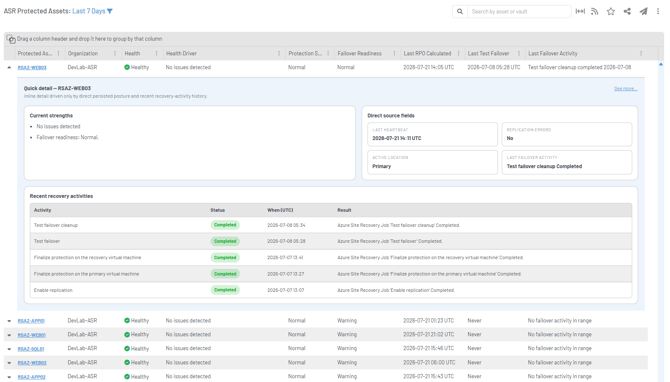
The Protected Assets report provides visibility into the workloads protected by Azure Site Recovery and their current replication health.
The report includes the Organization associated with each asset and displays replication health error details in a readable format to help you identify issues affecting protected workloads.
You can also:
- Reorder the report columns.
- Group the report data using available columns.
- Review assets across different Organizations from the same report.
Recovery Activity
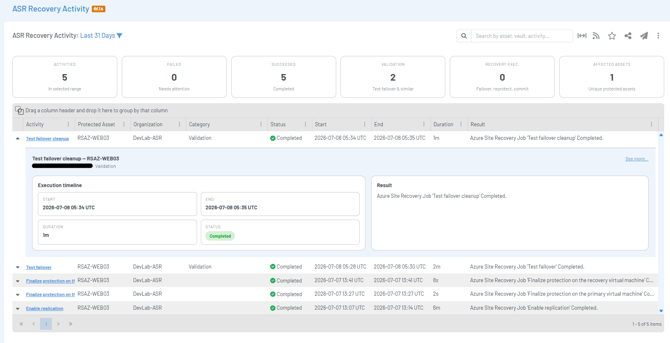
The Recovery Activity report provides information about Azure Site Recovery operations and their results, including activities such as failovers, test failovers, and reprotection operations when they are available in Azure.
The report includes the Organization associated with each activity. You can reorder its columns and group the data to make it easier to review activity across Organizations, connections, assets, or other available fields.
ASR Trends
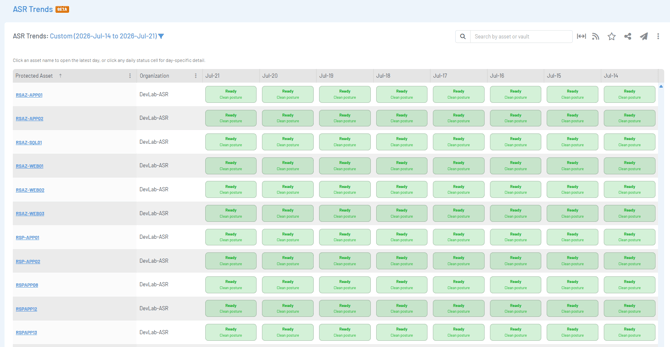
The ASR Trends report displays the daily ASR health status of each protected asset over time.
The daily status is calculated using the ASR RPO/SLA Tolerance Window configured for the Azure connection. Each day also includes an explanation of why the asset received its displayed status.
This helps distinguish between:
- Brief issues that resolved within the accepted tolerance window.
- Issues that are still active but remain within the tolerance window.
- Issues that continued longer than the accepted tolerance window.
By default, assets are sorted by asset name to make their status history easier to review.
What should I check if ASR data is not displayed?
If ASR information does not appear in Bocada Cloud, confirm that:
- The Recovery Services vault contains at least one ASR-protected workload.
- ASR diagnostic logging is enabled for the vault.
- The diagnostic setting is sending data to the expected Log Analytics workspace.
- ASR data is present in that Log Analytics workspace.
- The App Client used by Bocada Cloud can find the workspace.
- The App Client has permission to query the workspace data.
- The correct Azure subscription is included in the Bocada Cloud connection.
Remember to check each vault and workspace individually. A permission assigned to one workspace does not automatically provide access to another.
If problems persist, create a Support Ticket in Bocada Cloud, or contact us.