
Log into Bocada Cloud
- On the left navigation menu, click Connections, then +Add.
- Click the Axcient x360 Recover tile.
Enter Connection Details
- Organization: If you have set up more than one Organization, you will be asked to select which Organization the Axcient connection should be associated with for reporting. If you only have a single Organization, this field will not display.
- Connection Name: give this connection a name that will appear in the Bocada Cloud reports and notifications. This is useful if you are planning to add connections to multiple Axcient backup systems to distinguish between them.
- API Key: to generate the API Key, you will need to log into the Axcient x360 Portal (not the x360 Recover portal). Go to Settings > API Keys and click the Add API Key button in the top right of the screen.
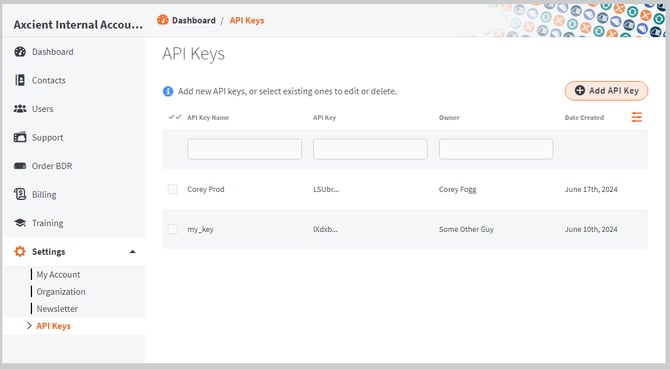
- Axcient provides documentation to create this key: https://help.axcient.com/360001190313-Axcient-x360Portal-/generating-and-managing-api-keys
- Check the box next to "x360 Recover" under API key access
- The screen to generate the API Key should look similar to this:
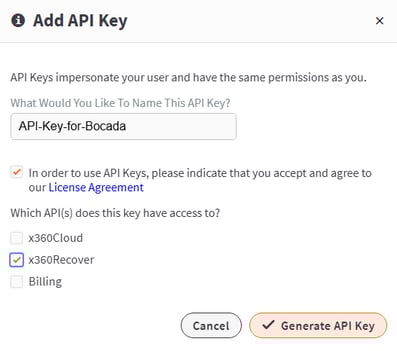
4. Copy and paste the API key you created into the API Key field in Bocada Cloud.
Connect and Collect Data
After you have entered the required data fields, click the Connect button.
This will initiate the connection between Bocada Cloud and your Axcient account. If the information you have entered is correct, Bocada Cloud will discover tenant information from Axcient x360 Recover. If there is more than one tenant, it will automatically create an Organization in Bocada Cloud for each tenant which you will be able to review and edit as needed.
- Multi-tenant data collection: The Axcient x360 connector supports multi-tenant data collection. That means, it will collect data from all tenants you have set up in Axcient with a single connection. The tenant names, and backup data associated with each tenant, will be collected and mapped to Organizations in Bocada Cloud. You will be able to review and edit the association between each Axcient tenant and Bocada Cloud organization to segment the data in reports and dashboards appropriately.
- For example, MSPs often set up a tenant for each of their customers within the Axcient application. A single connection between Bocada Cloud and Axcient will collect data from all of their customers (tenants), mapping each customer/tenant name to an Organization in Bocada Cloud. That way, they can view and manage each customer's individual backup information in the Bocada Cloud UI.
- Once data collection is complete, you will see backup data results in the Bocada Cloud Dashboard and Reports. Data collection will automatically run every hour and pull the latest Axcient backup results into Bocada Cloud.
- If there is a problem with the connection between Bocada Cloud and Axcient, you will see an error message. Click "Details" on the error message to see more information about what occurred. You can also click the Previous button to view and edit the data you entered. A few common errors include:
- An incorrectly entered API key.
- An incorrectly entered Customer Name.
If you have issues connecting to Axcient after trying these steps, create a Support Ticket in Bocada Cloud, or contact us.